New shortcut on Linux
Understand how to create a shortcut for a specific application on Linux.
A shortcut makes an application easy to access without opening a terminal or navigating through several folders to find its executable every time you want to launch it.
Building the shortcut
To create a shortcut, follow these steps:
First, navigate to the .local/share/applications/ directory:
cd .local/share/applications/
The shortcut's configuration file will be stored in this directory.
Create a new file with this command:
touch <SHORTCUT_NAME>.desktop
Replace <SHORTCUT_NAME> with a name that identifies the application. Do not use spaces or special characters, and make sure the name is unique within .local/share/applications/.
Next, add the shortcut settings to the new file. There are several ways to edit it; the example below uses Vim:
vim <SHORTCUT_NAME>.desktop
After running that command, press i to enter insert mode and add the following information for the application you want to launch:
#!/usr/bin/env xdg-open
[Desktop Entry]
Type=Application
Name=<APPLICATION_NAME>
Exec="<APPLICATION_DIRECTORY>/<APPLICATION_EXECUTABLE>"
Icon=<APPLICATION_DIRECTORY>/<APPLICATION_ICON.png>
Categories=Application;
-
<APPLICATION_NAME> ⇒ Replace this with the application's name. This is the name shown in the Linux application search. Spaces and special characters are allowed here.
-
<APPLICATION_DIRECTORY> ⇒ Replace this with the application's location on Linux, such as
/home/matt/app/Robo3T/bin/. -
<APPLICATION_EXECUTABLE> ⇒ Replace this with the name of the application's executable.
-
<APPLICATION_ICON.png> ⇒ Replace this with the application's icon filename. If there is no icon, you can download an image and use it instead.
To save your changes in Vim, press Esc, type :wq, and press Enter.
The :wq command tells Vim to write (w) your changes and quit (q).
Example shortcut
Once configured, the file will look like the example below, which creates a shortcut for Robo 3T:
#!/usr/bin/env xdg-open
[Desktop Entry]
Type=Application
Name=Robo 3T
Exec="/home/matt/app/Robo3T/bin/robo3t"
Icon=/home/matt/app/Robo3T/bin/robo3t.png
Categories=Application;
Shortcut
To check whether the shortcut works, search for it in the Linux application search, as shown below:
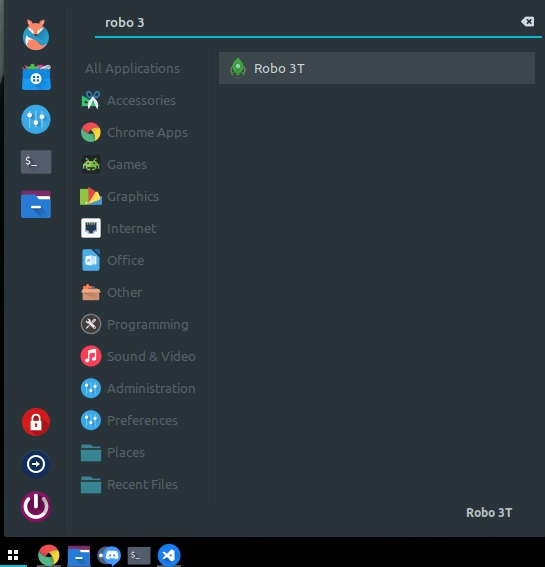
Note: If the icon does not appear, it means Linux did not find the application's executable.
Author
Mathias Artur Schulz
Senior Software Engineer
Bachelor's degree in Computer Science and Postgraduate degree in Software Engineering
Email:mathias@schulz.net.br